Find all the awesome LLM Apps demo with RAG in the following Github Repo. P.S: Don't forget to star the repo to show your support
@saboo_shubham_
-
Streamlit Gemini Multimodal Chatbot Application Demo
By
–
Working Application demo using Streamlit
— Shubham Saboo (@Saboo_Shubham_) 7 juin 2024
Paste the above code in vscode or pycharm and run the following command: 'streamlit run gemini_multimodal_chatbot.py' pic.twitter.com/oUYSPsEHmCWorking Application demo using Streamlit Paste the above code in vscode or pycharm and run the following command: 'streamlit run gemini_multimodal_chatbot.py'
-
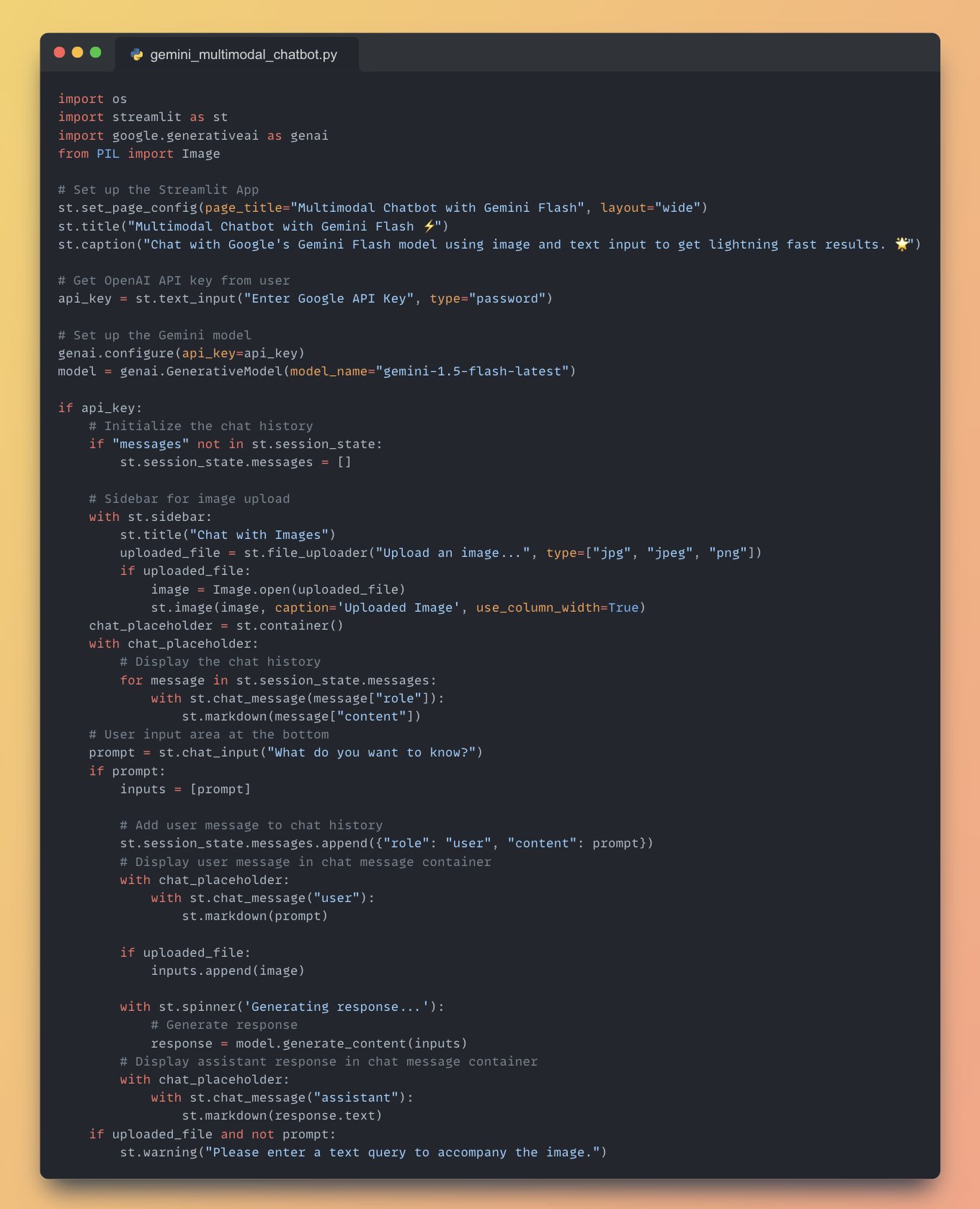
Full Multimodal Chatbot with Google Gemini Flash
By
–
Full Multimodal Chatbot code using Google's Gemini Flash
-
Building Gemini Flash Chatbot with Image Upload and History
By
–
7. Generate Response and Display • If a prompt is entered, add the user message to the chat history and display it
• If an image is uploaded, add it to the inputs list
• Generate a response using the Gemini Flash
• Display the assistant response in the chat message container -
Building Chat History and Input Area with Streamlit
By
–
6. Display Chat History and User Input Area • Create a container for the chat history using 'st.container()'
• Display the chat history using '
http://
st.chat_message()' and 'st.markdown()'
• Create a user input area using '
http://
st.chat_input()' -
Initialize Chat History and Sidebar for Image Upload in Streamlit
By
–
5. Initialize Chat History and Sidebar for Image Upload • Initialize the chat history using Streamlit's session state
• Create sidebar for image upload using 'st.sidebar'
• Allow users to upload image using 'st.file_uploader()'
• Display the uploaded image using 'st.image()' -

Setting Up Gemini Flash Model with Google API
By
–
4. Set up the Gemini Flash Model • Create a text input for the user to enter their Google API key using 'st.text_input()'
• Configure the genai library with the API key
• Create an instance of the Gemini Flash model -

Setting up Streamlit App Configuration and Layout
By
–
3. Set up the Streamlit App • Set the page title and layout using 'st.set_page_config()'
• Add a title to the app using 'st.title()'
• Add a description for the app using 'st.caption()' -
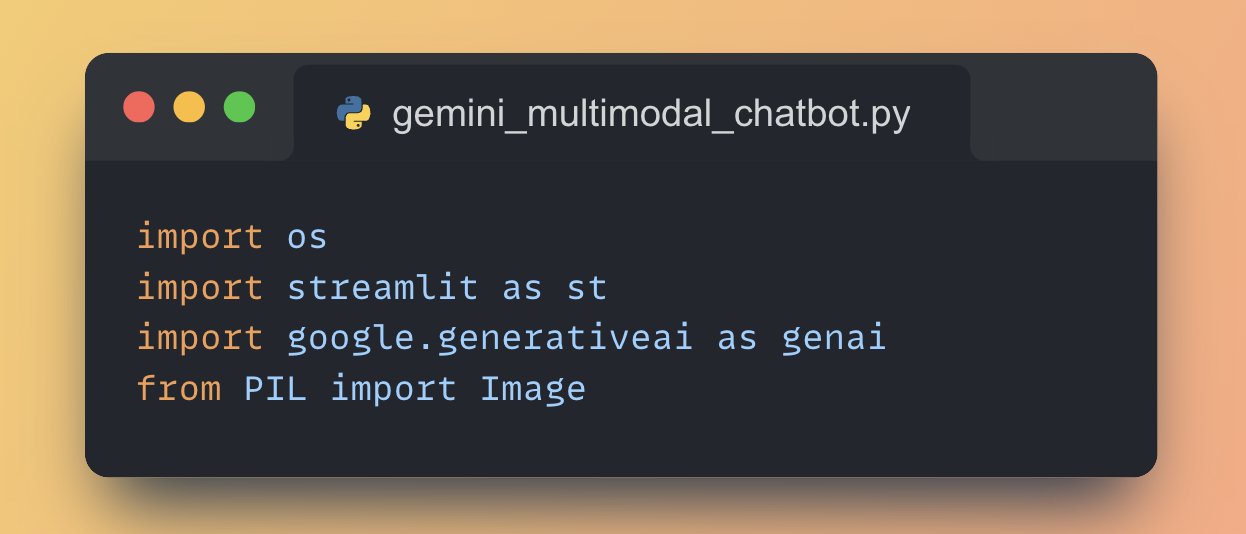
Building Web Apps with Streamlit and Gemini Flash Model
By
–
2. Import necessary libraries • Streamlit for building the web app
• google.generativeai for accessing the Gemini Flash model
• PIL for image processing -
Build Multimodal LLM Chatbot with Gemini Flash Python
By
–
Build a multimodal LLM chatbot using Gemini Flash in just 30 lines of Python Code (step-by-step instructions):